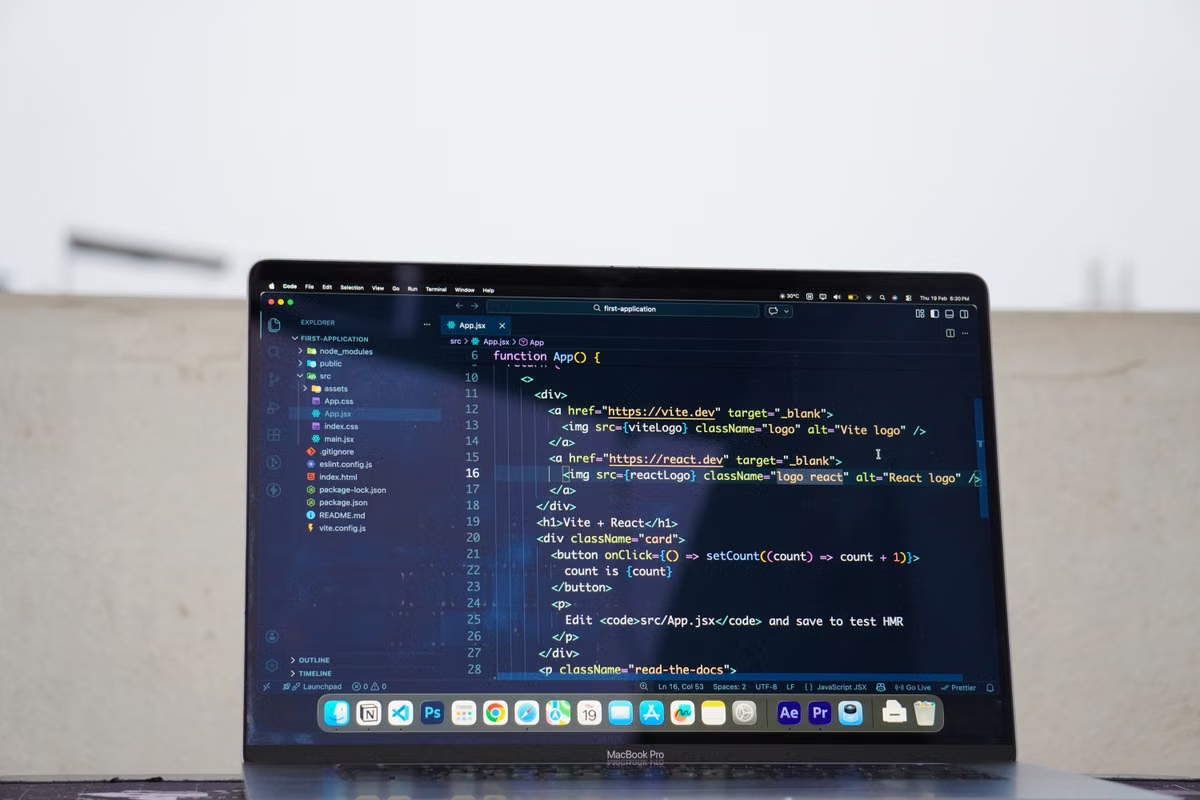
Four execution layers determine whether remote development is actually ready: the local VS Code client, the SSH channel, VS Code Server, and the remote project toolchain. The VS Code Remote Development overview confirms that the editor interface can remain local while development tools and extensions operate on the remote host. Therefore, use VS Code locally, run source code and macOS tooling on the remote Mac, and validate each layer separately.
Symptom: SSH login works, but VS Code cannot open, build, debug, or reconnect to the project.
Fastest fix: Test standard SSH first, then verify VS Code Server, the remote shell, Apple Silicon extension support, and a real repository before changing settings.
This guide is for you if you develop on Windows or Linux but need Swift, Xcode command-line tools, signing utilities, or other macOS-specific tooling. It also fits DevOps engineers building a shared development node and platform maintainers who can already access a Mac through SSH but face PATH, extension, debugging, or reconnection failures.
A successful SSH login is only the first readiness signal
A remote Mac development environment has four separate layers:
- Local client: VS Code and the Remote - SSH extension run on your Windows or Linux workstation.
- Transport: SSH authenticates the user and carries terminal, file, port-forwarding, and control traffic.
- Remote editor service: VS Code Server runs on the Mac and coordinates the remote workspace.
- Project runtime: Git, language runtimes, package managers, compilers, test tools, debuggers, and macOS utilities execute on the Mac.
The result should be classified with four acceptance states:
- Connectable: standard SSH authentication works.
- Editable: VS Code Server starts and the project folder opens.
- Buildable: dependencies, tasks, and compilers execute remotely.
- Recoverable: the workspace can reconnect after a dropped session or host restart.
Do not mark the environment ready when only the first state passes. The Remote - SSH documentation describes the connection model, but your repository still determines whether the toolchain is usable.
Important: A terminal opened from a normal SSH session and a terminal launched by VS Code may not load the same shell files or environment variables. Always verify the environment from the remote VS Code window.
First step: establish macOS Remote Login and key authentication
On the Mac, enable Remote Login in the system sharing settings. Apple documents this feature as the built-in method for allowing SSH connections to the Mac, including the users permitted to connect. Review the Apple Remote Login guide before adding a user to the allowed list.
From your local machine, test the connection outside VS Code:
ssh -i ~/.ssh/id_ed25519 macuser@remote-mac.example
On Windows, use the OpenSSH client available in PowerShell or Windows Terminal. On Linux, use the system SSH client. If your service provides a non-default SSH port, specify it explicitly:
ssh -p 2222 -i ~/.ssh/id_ed25519 macuser@remote-mac.example
Port 22 is the conventional SSH port, while a custom port must be declared in the command or SSH configuration. Apple’s Terminal connection guide explains the standard server connection pattern.
Create a local SSH host entry to reduce mistakes:
Host remote-mac
    HostName remote-mac.example
    User macuser
    Port 22
    IdentityFile ~/.ssh/id_ed25519
    IdentitiesOnly yes
Replace every value with the details supplied for your Mac. The first connection should leave clear evidence:
- The host key prompt appears and is accepted after you verify the host identity.
- The expected macOS username is returned by
whoami. - The working directory belongs to the intended user.
- The required project directory is visible.
- The connection uses the expected key rather than an unintended agent identity.
If this test fails, do not troubleshoot VS Code yet. Check the hostname, port, username, private-key permissions, Remote Login user list, and network access first.
Second step: let VS Code Server run on the remote Mac
Install VS Code and the Remote - SSH extension on your local workstation. The desktop application is the interface you control. VS Code Server is the remote component that manages the workspace on the Mac.
Open the command palette and select Remote-SSH: Connect to Host.... Choose the SSH host entry you tested. On the first connection, VS Code may need to obtain or transfer the server component to the remote machine. The official Remote - SSH FAQ explains the server installation and connection behavior.
Check the connection log when the process stops. The failure stage matters:
- Resolver failure: VS Code cannot interpret the host or SSH configuration.
- Authentication failure: the SSH client cannot prove the user’s identity.
- Transport failure: the host, port, firewall, or network path is unavailable.
- Server installation failure: the Mac cannot download or receive the server files, or lacks a usable remote directory.
- Session startup failure: the server starts but cannot create the workspace session.
The Mac needs a path for VS Code Server installation and a network path that supports the required download or transfer method. If outbound access is restricted, use the transfer option supported by your environment rather than assuming that ordinary SSH access also guarantees server installation access.
After connection, use the bottom-left remote indicator to confirm that the window is attached to the expected host. Open a real project folder on the Mac instead of an empty directory. This is the second acceptance state: editable, not merely authenticated.
Third step: verify the remote shell and toolchain boundary
The most common configuration mistake is checking the local terminal and assuming it describes the Mac. In a Remote SSH window, run:
whoami
pwd
echo "$SHELL"
echo "$PATH"
uname -m
which git
which xcodebuild
Each command answers a different question:
whoamiconfirms the execution identity.pwdconfirms the remote workspace location.SHELLshows the declared shell, not necessarily every startup behavior.PATHreveals whether compilers and package managers are discoverable.uname -midentifies the remote machine architecture.whichshows which executable the current process will actually use.
Compare these results with a normal SSH session. If they differ, inspect the shell startup files and the way VS Code launches the remote process. Do not solve the issue by copying your entire local PATH into the Mac. That can introduce paths to binaries that exist only on Windows or Linux.
Use a project-level baseline instead:
- Commit the package lockfile used by the project.
- Pin language versions with the project’s supported version-management method.
- Define required environment variables in a documented template.
- Add a setup or verification script that fails when a required tool is missing.
- Keep secrets outside the repository and inject them through the approved credential mechanism.
For example, a lightweight verification script can check the expected user, architecture, Git version, build tool, and working directory. The script should report a missing dependency instead of silently falling back to a different executable.
This separation is especially important for VS Code tasks and launch configurations. A task launched by the remote window should execute on the Mac, while a task configured for a local terminal can still run on your workstation. Read the task definition and confirm its output path before trusting the result.
For a broader baseline, compare this process with the remote Mac development environment guide when setting up shell access, project directories, and maintenance procedures.
Fourth step: validate Apple Silicon and remote extensions separately
Apple Silicon is a property of the remote Mac, but extension compatibility is a property of each extension and its runtime. Do not treat an extension installation message as proof of compatibility.
Start with:
uname -m
system_profiler SPHardwareDataType
Use the result to distinguish the host architecture from the project’s target architecture. A project may build for a different target, and an extension may include a native helper with its own support range.
VS Code’s remote extension model places many extensions on the remote host. The remote extension architecture documentation explains that an extension’s execution location matters. Check each important component individually:
- Language server: can it start on the remote Mac?
- Debugger: does it attach to the intended process?
- Formatter: does the formatter executable exist remotely?
- Build integration: does it invoke the Mac toolchain rather than a local binary?
- Native helper: does the publisher document support for the remote operating system and architecture?
- External runtime: is the required Node.js, Python, Java, or other runtime available on the Mac?
When an extension fails, inspect the extension host log and the extension’s official support information. Avoid relying on community claims that an extension “should work” on Apple Silicon. The relevant question is whether the exact version, remote operating system, architecture, and project runtime combination is supported.
If the project uses Xcode, separate command-line validation from graphical validation. xcodebuild, tests, archive commands, signing operations, and scripts may work through SSH. Simulator interaction, GUI-only settings, authorization dialogs, and certain certificate prompts may still require a remote desktop channel.
Fifth step: validate a real repository, not an empty workspace
A useful acceptance run follows the project’s actual path:
- Clone or open the repository on the remote Mac.
- Confirm the expected branch and Git identity.
- Install dependencies using the project’s documented command.
- Run the formatter or linter from the VS Code terminal.
- Execute a normal build or test task.
- Attach the debugger to a supported target.
- Forward a development port if the project exposes a local service.
- Commit or inspect changes through the remote Git process.
Port forwarding should be tested with the real service, not just enabled in settings. Start the application on the Mac, confirm its listening address, open the forwarded port locally, and verify that the request reaches the remote process.
For an Xcode project, record whether the failure occurs during dependency resolution, compilation, signing, simulator launch, or GUI interaction. These are different problems and may require different channels. SSH is efficient for command-driven work, but it is not a universal replacement for macOS graphical access.
The acceptance evidence should include the command output, the workspace host indicator, the build artifact location, and the exact failure stage if a test fails. This makes the environment reproducible for another engineer instead of turning your personal terminal state into undocumented infrastructure.
Security and recovery determine whether the node is reusable
Full root access can simplify maintenance, but development tasks should normally run under a dedicated non-administrator account with only the permissions required by the project. Separate user accounts when multiple people share the Mac. Review:
- SSH keys and who can use them.
- Project directory ownership and group permissions.
- Repository tokens and signing credentials.
- Whether remote extensions can access sensitive files.
- Whether the server binds only through the intended remote connection path.
- Which tasks are allowed to invoke privileged commands.
Do not place private keys, signing assets, or long-lived repository tokens in the project directory. Rotate credentials when access changes. Treat a shared remote Mac as a multi-user system even if the service provides administrative access.
Test recovery before calling the environment suitable for continuous work:
- Close and reopen the VS Code window.
- Disconnect and reconnect the SSH session.
- Stop a long-running task and confirm its behavior.
- Reboot the Mac if your operating procedure allows it.
- Reopen the project and repeat the toolchain checks.
- Confirm whether background jobs survive disconnection or require
tmux, a service manager, or a CI runner.
A dropped VS Code connection does not automatically define the state of the process running on the Mac. If a build or test must continue after your laptop sleeps, choose an explicit session or automation strategy and document how to inspect, stop, and recover it.
Decision matrix: choose the channel and hosting model by workload
Use this scored comparison instead of treating every remote development request as the same problem.
Temporary command-line build
- Best channel: SSH plus VS Code Remote SSH.
- Minimum proof: authentication, VS Code Server startup, dependency installation, and one real build.
- Choose this when the task is short-lived and does not need simulator or GUI interaction.
- Avoid keeping a permanent node if the repository is rarely used and the environment can be recreated reliably.
Daily remote development
- Best channel: VS Code Remote SSH, with remote desktop available as a fallback.
- Minimum proof: stable workspace opening, consistent PATH, debugger operation, port forwarding, and reconnect validation.
- Choose a persistent Mac when repeated dependency installation or machine preparation would otherwise consume engineering time.
Team-shared development host
- Best channel: SSH and remote desktop with separate user accounts.
- Minimum proof: user isolation, project permissions, credential separation, and a documented recovery process.
- Do not treat a single shared administrator account as a collaboration feature. It makes audit and incident response harder.
Always-on automation
- Best channel: SSH for administration, an explicit runner or service for execution, and remote desktop only for exceptional GUI work.
- Minimum proof: restart behavior, credential rotation, logs, and failure notification.
- Use a persistent node only when the workload needs macOS continuously or when rebuilding the environment is more expensive than maintaining it.
FAQ: common VS Code Remote SSH decisions
The questions below cover the boundaries that most often cause a connection to be marked successful too early.
How do you connect to a remote Mac from Windows with VS Code?
Enable Remote Login on the Mac, confirm that a permitted user can connect with standard SSH, then install the Remote - SSH extension in the local VS Code client. Add the Mac host to your SSH configuration or enter its address directly. After authentication succeeds, VS Code installs or starts VS Code Server on the remote Mac and opens the remote workspace there.
Should VS Code Server be installed locally or on the remote Mac?
VS Code Server belongs on the remote Mac because it provides the remote workspace, terminal, language services, tasks, and remote extensions. The desktop VS Code application stays on your Windows or Linux computer as the control interface. Treating the server as a local component creates misleading PATH checks and can make a successful SSH session look like a working remote development environment.
What should you check when the Remote SSH terminal has a different environment?
Compare the effective user, working directory, shell, PATH, and tool locations from the VS Code terminal rather than from a separate interactive SSH window. Startup files can behave differently for non-interactive or non-login processes. Use project lockfiles, version managers, and an initialization script to define the required environment instead of relying on personal shell state.
What can you do if a VS Code extension is incompatible with Apple Silicon?
First identify where the extension runs and whether it includes a native binary or depends on an external runtime. Check the extension vendor’s official support statement for the remote operating system and architecture. Then test the language service, debugger, formatter, or build integration on the remote Mac. A successful installation alone does not prove that the extension can execute correctly.
Can VS Code Remote SSH run and debug an Xcode project directly?
It can support command-line project operations when the required Apple toolchain, dependencies, signing assets, and build commands exist on the remote Mac. It does not replace every graphical Xcode workflow. Simulator interaction, GUI-only settings, signing prompts, and other system dialogs may require remote desktop access in addition to SSH. Validate the actual project path before choosing SSH alone.
Final configuration decision
Keep your current Mac if it already passes all four acceptance states and you need predictable physical access, specialized peripherals, or sustained heavy workloads. Repair the existing host when the failure is limited to an SSH key, PATH definition, extension runtime, or project initialization script.
A remote Mac is the more flexible option when your Windows or Linux workstation cannot provide macOS tooling, when you need a persistent build environment, or when local hardware would sit idle between projects. Your current setup may require separate operating-system workarounds, may lack reliable macOS GUI access, and may lose a prepared environment when the local machine is unavailable. A rented Mac through SSHMac can provide a real macOS host with SSH and remote desktop access, so you can select the architecture, access method, and rental period before repeating this validation process.
Before committing to a long-running arrangement, use the remote Mac development environment checklist and verify the exact repository, extension set, credentials, and recovery procedure. If you only need an occasional build, rent for the task and release the environment afterward. If you need continuous automation, preserve the node only after restart, access control, and secret-management tests pass.