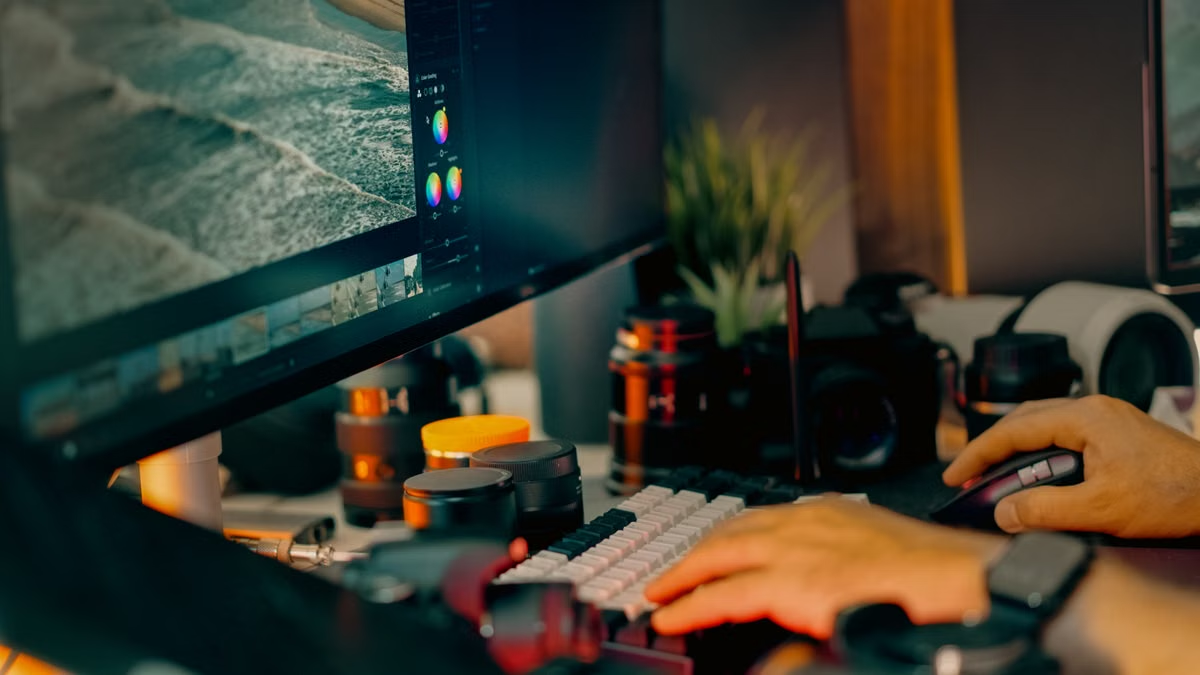
Lightroom opens, but your photo library, edits, and exports all need to fit into a small travel workflow.
Fast answer: the MacBook Neo can suit light edits and on-location selection, but don’t buy it as a long-term photo workstation just because Lightroom can run on it.
This guide is for photographers who mainly browse, select, crop, and make basic adjustments, as well as freelancers deciding whether to upgrade a primary editing Mac. It also covers the trade-offs of using a cloud Mac for occasional processing.
Is the MacBook Neo good enough for Lightroom?
For selecting photos, reviewing a manageable set of images, and making basic exposure or color adjustments, the MacBook Neo may be a reasonable entry-level or travel device. For a large Lightroom Classic catalog, repeated batch exports, demanding AI edits, or color-critical delivery, treat it as a conditional choice—not as a proven substitute for a higher-capacity local Mac.
Apple lists the MacBook Neo with an A18 Pro chip, 8GB of unified memory, and an sRGB display in its technical specifications. Those details establish what the hardware includes; they do not establish how quickly it will process your particular RAW files or how it will behave in a long editing session.
Adobe’s Apple silicon compatibility list identifies supported apps that can run natively on Apple silicon. Compatibility answers whether an app can run on the platform. It does not promise that a particular laptop will feel responsive with your catalog, edits, and other apps open.
Keep these three judgments separate:
- Can install or run: Adobe lists the relevant application as compatible with Apple silicon.
- Can complete light edits: A modest selection-and-adjustment workflow may be workable, but your own files and editing habits determine the experience.
- Suitable as a primary workstation: This requires sustained performance, enough room for your working library, and a display you trust for the final image—not just a successful app launch.
Can the MacBook Neo run Lightroom and Lightroom Classic?
Adobe’s compatibility information is the right place to confirm support for Lightroom and Lightroom Classic on Apple silicon. Check the current Adobe pages for the exact app and version you plan to use; don’t infer that both applications have identical requirements or workflows from a general compatibility listing. The Lightroom desktop system requirements and Lightroom Classic system requirements are separate references for a reason.
Lightroom and Lightroom Classic also organize work differently. If your routine centers on a cloud-synced library, Lightroom may fit naturally. If you depend on a local catalog, carefully managed originals, previews, and established folder structures, Lightroom Classic places more responsibility on your storage setup. Neither application’s compatibility status tells you whether the Neo’s available memory and storage will suit the scale of your actual library.
Will RAW editing feel slow on the MacBook Neo?
There is no responsible way to answer that for every photographer without knowing the camera files, catalog state, adjustments, and competing tasks. Basic edits to a handful of images are not the same workload as generating previews for a large import, running several demanding adjustments, and exporting a finished set while other apps remain open.
Independent reviews can add useful context, but they are observations about specific machines and test methods rather than guarantees for your images. The Digital Camera World photography review looks at the Neo from a photographer’s perspective. Use it as a reference point, then test your own workflow if a return window or hands-on evaluation is available. Don’t turn someone else’s result into a promise about your RAW files.
Match the laptop to the work you actually do
A photo workflow is more than the moment you move a slider. Importing, organizing, previewing, editing, exporting, and checking the final image each put different demands on a device. Decide based on the slowest or most critical part of your process, not on a single impressive-looking edit.
| Photo workflow | MacBook Neo fit | What to verify before choosing |
|---|---|---|
| Browse, rate, and select a small travel shoot | Good candidate | Confirm that your card reader, import method, and image review routine work comfortably. |
| Crop and make basic exposure or color adjustments | Conditional | Try representative RAW files and check response during your normal editing sequence. |
| Maintain a large Lightroom Classic catalog | Weak as an untested primary choice | Review catalog, preview, cache, and original-file locations, plus available local space. |
| Export many finished images or run demanding AI edits | Use caution | Test a representative batch; don’t assume that a short successful edit predicts a sustained session. |
| Approve color-critical client work | Poor fit without a trusted external display workflow | Assess the display and your color-managed review process independently of app compatibility. |
The table is a decision filter, not a benchmark. “Good candidate” means the workflow is comparatively light and portable. It does not mean the device has been tested with every camera, catalog, or Adobe release.
Lightroom Classic and a large photo library
A local catalog can make storage planning part of the purchase decision. The catalog, previews, cache, and original photos may not all live in the same place, but each location needs a reliable plan. Before you buy, identify which files you keep on the laptop, which stay on external storage, and how you back them up.
External storage can add room for originals, but it does not remove every constraint. You still need to connect and mount the drive when required, avoid separating catalog references from the files they point to, and keep a dependable backup. Moving a library between devices also adds steps that a simple “the drive has enough capacity” calculation misses.
If you already own a capable desktop or laptop, using the Neo as a travel selector may be more sensible than moving your entire archive onto it. Keep a clear division between the mobile working set and the primary catalog, and test that your chosen Lightroom workflow handles the handoff before a client deadline.
For broader planning, our guide to choosing local or external storage for a photo library can help you identify the operational trade-offs. Treat storage as a workflow decision: the drive, catalog, backup, and transfer routine need to work together.
Batch exports and AI editing
A single image that opens and saves successfully says little about a sustained batch. Exports keep the computer busy for longer, and AI-based tools can add heavier processing to a workflow. The practical question is whether you can complete the work at the pace and reliability you need, while preserving time for review and delivery.
Adobe’s Photoshop system requirements provide a useful—but limited—reference: Adobe lists 8GB of memory as the minimum and 16GB or more as recommended for Photoshop in its current requirements. These are Photoshop figures, not a Lightroom recommendation, and they do not predict Neo performance. They do show why “meets a minimum” and “comfortable for a professional workflow” are different standards.
Is the MacBook Neo suitable for Lightroom AI denoise?
Don’t decide from the feature name alone. Check Adobe’s current requirements for the specific app and feature, then test a representative RAW file from your own camera. If AI denoise is an occasional step, you might accept a slower or less convenient process. If you apply it routinely across many images, make a sustained test part of your purchase decision and compare the result with a higher-capacity local Mac.
When more editing apps are open alongside Lightroom, the workload changes again. The Neo’s published 8GB unified-memory specification is a fixed constraint to weigh against the number of apps and files you tend to keep active; it is not a speed rating. Close background apps during a test only if that reflects how you actually work. Otherwise, the test won’t represent your day-to-day use.
Color review and on-location selection
Apple identifies the Neo’s display as sRGB in its published specifications. That is relevant when you decide whether to use the built-in screen for final color review. It does not, by itself, tell you exactly how a particular panel performs in a test, nor does it prove that every photo will look wrong. Display assessments depend on measurement method, settings, and the review unit.
Independent testing can help clarify that distinction. RTINGS evaluates the MacBook Neo’s display and workload positioning, while Ars Technica reports display measurements with its own test methodology. Read the test notes rather than treating any single review as universal. A photographer who selects images outdoors has a different display need from one who approves client color under controlled conditions.
If color accuracy matters to delivery, plan for a trusted external display and a consistent review environment. That setup can make the laptop useful for organizing or editing while moving final approval to the display you rely on. If you regularly work at a shoot and must approve color immediately without carrying another screen, the Neo’s built-in display deserves more scrutiny before purchase.
Should you buy a Neo or a MacBook Air M5 for photo editing?
Compare the device against your workflow rather than treating the model names as a complete answer. Apple publishes MacBook Air M5 technical specifications, which you can use alongside the Neo specifications to check the exact configuration available to you. Don’t assume that a model label alone establishes a better editing experience; compare memory, storage, screen, ports, and the price of the configuration you would actually buy.
| Choice | Best match | Main trade-off |
|---|---|---|
| MacBook Neo | Light edits, mobile selection, or a secondary computer | Its published memory and sRGB display call for caution with large catalogs and color-critical review. |
| MacBook Air M5 | A local portable machine for a more demanding or broader everyday workflow | Verify the exact configuration and cost against the apps and files you use. |
| Keep your current Mac | A workflow that already runs reliably, with the Neo considered only as a travel companion | You avoid replacing a working setup, but retain its existing limitations. |
| Cloud Mac for occasional work | A short, intermittent need for another macOS environment or processing capacity | Upload time, network quality, local accessories, and final color review remain your responsibility. |
For photographers comparing the Neo and Air, the Air is the more sensible candidate to evaluate when you expect a heavier local workflow—not an automatic recommendation for every buyer. Review the specific models and configurations available, then test your catalog and editing sequence. If the Neo already meets your needs for travel selection, spending more on a second device may not solve a problem you actually have.
Choose a local setup, an upgrade, or occasional cloud access
Use this sequence before making a purchase:
- Write down the real workflow. Include importing, culling, catalog updates, adjustments, exports, backups, and client review. Mark which steps happen away from your desk.
- Identify your Adobe apps and versions. Check Adobe’s current compatibility and system-requirements pages for Lightroom, Lightroom Classic, and any companion app you rely on.
- Gather representative files. Use RAW images from your own camera, not only small sample files. Include a typical edit and the kind of batch you regularly deliver.
- Map your storage. Record where the catalog, previews, cache, originals, and backups will live. Confirm the external-drive and card-reader connections you need.
- Test the sustained work. Run your normal sequence through import, edits, AI tools if relevant, and export. Observe whether interruptions or delays would affect a real delivery.
- Evaluate the display separately. Decide whether the built-in screen is for selection only or whether you expect to approve color on it. If you need a calibrated external display, include it in the setup.
- Choose by frequency and consequence. If heavy editing is rare, you may accept a separate occasional workflow. If it is routine or deadline-critical, prioritize a local machine that you have verified against that work.
The choice depends on how often you edit, not simply on whether you are a “professional” or an “amateur.” An enthusiast who processes large shoots every weekend may need more headroom than a freelancer who mostly selects images while traveling and edits at a studio workstation.
- Choose the MacBook Neo if you mainly browse, select, and make light edits, and your storage and display needs are modest.
- Choose or evaluate a stronger local Mac if you regularly work with a large catalog, sustained exports, demanding AI edits, or several apps at once.
- Keep your current device if it already handles the primary work and your reason for buying is only occasional portability.
- Consider a cloud Mac if you need additional macOS capacity intermittently and can move the required files reliably. It is not a replacement for local card import, a dependable network, or color-critical viewing on your own trusted screen.
Cloud access can be useful for a bounded task, but it changes the workflow: you must transfer files, work over a network, and review the finished images locally if the remote display is not suitable for final color decisions. Before relying on it, estimate the time and effort of moving the files and make sure your local peripherals and review setup still fit the job. You can check SSHMac’s service information and the support center to understand the available service path and what to verify before using a remote setup. Don’t assume remote processing will be cheaper or faster for your specific shoot.
If most of your work involves local imports, catalog management, and careful image review, choose a local Mac based on that complete workflow rather than the ability to launch Lightroom. The Neo can make sense as a light-editing or travel companion; upgrade locally when demanding work is routine. Compared with buying another Mac, an SSHMac rental may suit an occasional, temporary need for extra macOS capacity, but it adds file-transfer and network constraints and cannot replace trusted local color review. Check those limits against the actual task before renting.