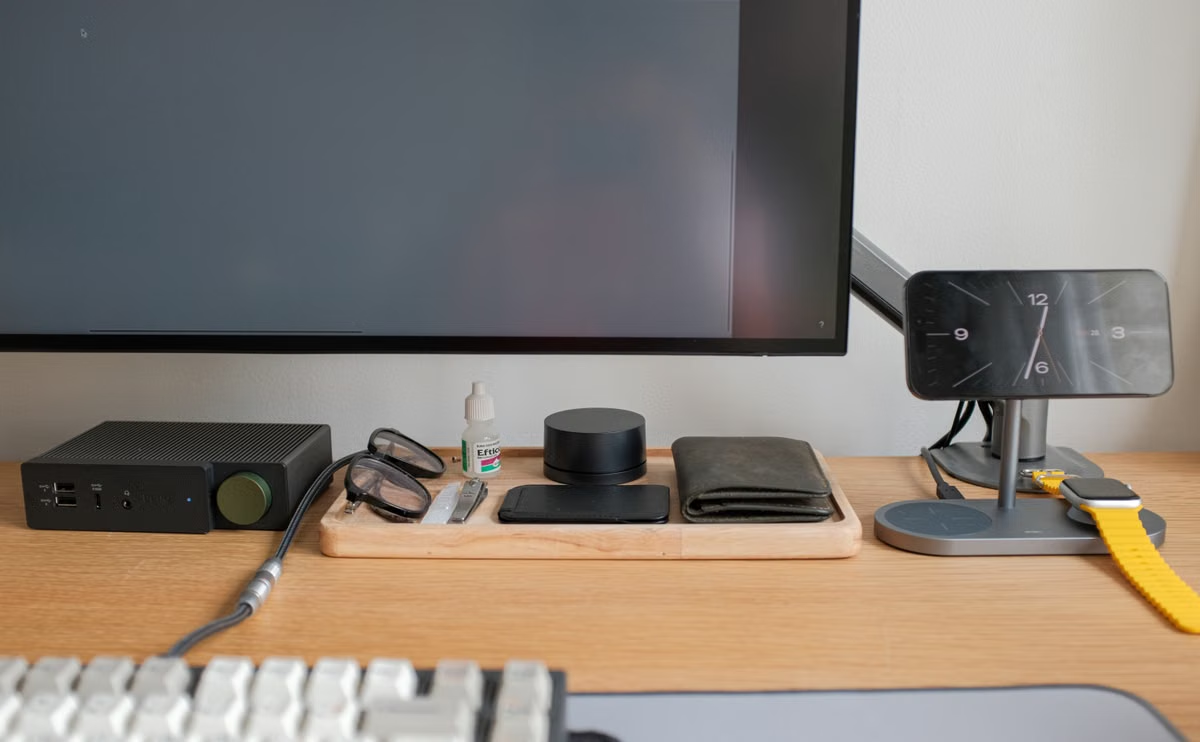
Symptom: The Mac mini M6 looks like the whole purchase, but your desk still needs a display, input devices, connections, and a workable network.
Fastest fix: Use Apple’s Mac mini technical specifications to check the model’s supported ports and displays, then price only the equipment you do not already have and can use. If you’re starting from scratch, separate must-haves from items you can postpone before adding local prices.
This guide is for students buying their first desktop Mac, developers checking whether existing peripherals will work, and households or teams equipping a shared desk. If you already have a compatible display and keyboard, focus on the extra items your setup actually needs. If you’re buying everything at once, use the cost worksheet below rather than treating the computer’s price as the full budget.
Start with the desk you have, not the accessories you might buy
The Mac mini M6 total desktop cost is the cost of getting a working desk for your use—not just the amount shown for the computer. Count items you must purchase to make the setup usable. Don’t charge the budget again for equipment you own and have verified will work.
Write down the current price in your region for each item you may need. The figures will change by retailer, location, and purchase date, so use current local quotes rather than a price copied from another market.
| Desk situation | Items to verify before buying | Cost treatment | Budget risk |
|---|---|---|---|
| You have a display and keyboard | Display connection and supported mode; keyboard and mouse connection; any missing cable or adapter | Count only required additions | Low if each device is confirmed compatible |
| You have a display, but no suitable input devices | Display connection; keyboard and mouse; required cables or adapters | Reuse the display; price the missing items | Medium if the display’s connection or settings need extra hardware |
| You are starting from an empty desk | Display, keyboard, mouse or trackpad, connection cables, network connection | Price essential items first; mark optional items separately | High because every required category is new |
| You share a desk or peripherals | Device switching, available ports, extra cables or adapters, and disruption to other users | Count only the additions needed to share reliably | Variable; sharing can cost more if it interrupts existing work |
Treat the table’s risk labels as a prompt to inspect your setup, not as a compatibility guarantee. Apple’s Mac mini specifications are the place to confirm the exact ports and display support for the model you’re considering. A connector that appears to fit does not prove that your display will run at the resolution and refresh rate you want.
A useful worksheet is:
Desktop total = current Mac mini quote + required new display and input devices + required cables, adapters, and network additions − the value of equipment you can continue using.
For a personal budget, the value of an existing device is not automatically its resale price. If you plan to keep it, record the avoided replacement cost as a saving only when you have verified that it suits this setup. If you would need to replace it soon anyway, don’t treat the full replacement as a cost caused by the Mac mini.
What else do you need with a Mac mini M6?
Start with the jobs the desk must do. A student writing and browsing may need a display, keyboard, mouse, and a network connection. A developer might also need a particular display mode, wired network, or a hub for devices already in daily use. A team may need a way to switch a shared display and input devices without disconnecting someone else’s equipment.
For each item, mark it as required now, already available, replace only if needed, or can wait. The labels matter because accessory shopping can quietly turn a basic desktop purchase into a full desk refresh. A higher-end display or a new keyboard may be desirable, but that does not make it a necessary Mac mini purchase.
Apple’s Mac mini display connection guide describes connection options. Use it alongside the M6 technical specifications, not instead of them. Check the specific Mac mini’s supported connection and display limits, then compare them with the monitor’s inputs and the mode you plan to use.
A cable or adapter is a separate cost item when the display and computer do not connect directly in the way your setup requires. Add it only after confirming the connection path. Avoid buying an adapter based solely on a connector name: the cable, adapter, display input, and Mac’s supported output all need to match the intended use.
Can you keep your existing monitor, keyboard, and mouse?
Often, you can reuse devices—but verify each one separately. Don’t assume that a working keyboard proves the display is suitable, or that an available port guarantees every feature you expect.
For a monitor, check its model documentation for inputs and supported display modes. Then compare those details with Apple’s display support information and the M6 specifications. If you see a blank screen, an unexpected resolution, or a mode that isn’t available, Apple’s external display troubleshooting guidance can help you isolate whether the issue is the connection, display, or settings.
For a keyboard and mouse, identify how each device connects. Apple’s keyboard, mouse, and trackpad guide covers input-device use, while its Bluetooth connection instructions explain how to pair Bluetooth devices. Check the accessory’s own documentation if it needs a receiver, special software, or a particular connection method.
Don’t budget a replacement simply because an item is old. First check whether it connects, behaves as expected, and supports the task you care about. On the other hand, don’t assign a zero cost to an existing monitor if it forces you to buy a cable, adapter, or replacement device to make the desk usable.
How should you budget a desk from scratch?
Build the list in order of dependency. The display is the main visual output; the keyboard and pointing device let you operate the Mac; the cables or adapters make the chosen devices connect; and network access determines whether the desk can reach the services you need.
For each category, use three columns in your own notes: item, current local quote, and buy now or later. Keep the quote blank until you check the market where you will actually buy. Don’t substitute a foreign listing or an old price for the amount you can pay today.
Display: Specify the work you need it to support before comparing models. Confirm the connection and supported mode against Apple’s technical specifications and the display maker’s documentation. If your current display already meets the need, price only any connection parts that are missing.
Keyboard and pointing device: Decide whether a basic wired device or an existing Bluetooth device is enough. A new keyboard, mouse, or trackpad is optional unless your current equipment is missing, unsuitable, or incompatible with the connection you plan to use. Check any setup or pairing requirements before relying on it.
Cables and adapters: List the exact connection gaps between the Mac, display, and other equipment. Don’t add a hub by default. If you need extra ports for named devices, first compare those devices with the ports listed for the Mac mini M6, then add an expansion accessory only if a real gap remains.
Network: Check whether your desk has the connection your work requires. If it relies on Wi-Fi, verify that the network is available and stable at the desk. If a wired connection is required, check the Mac’s specifications and your existing network equipment before adding cable or networking hardware to the budget.
Optional upgrades: Mark items such as a display upgrade, extra charging accessories, or a desk refresh as deferred unless they solve a specific need. They may improve the setup, but they should not obscure the minimum cost of making the Mac usable.
This method makes the Mac mini peripheral budget specific to your desk. It also shows which costs are caused by the computer purchase and which are choices you can make later. If an item has no clear job in your setup, leave it out of the required total and reconsider it after the Mac is in use.
Shared desks need a switching test, not just a reuse assumption
A shared monitor or keyboard can lower the initial purchase total only if people can use it without creating daily friction. Before counting shared equipment as available, check who needs it, how often they need it, and what must be unplugged or switched when someone changes devices.
Try the intended handoff with the equipment you already have. Confirm whether the display can select the needed input, whether the keyboard and mouse can connect to the right computer, and whether any extra cable or adapter is required. Apple’s Mac mini user guide is useful for checking the Mac’s setup and connection instructions; accessory-specific switching behavior still needs to be verified with the device documentation.
If sharing requires someone to disconnect essential work equipment, include the cost of a separate cable, switching accessory, or dedicated peripheral in the estimate. If the equipment will be used by different people at different times and switching is straightforward, reusing it may be reasonable. The deciding factor is whether the shared setup works in your actual routine, not whether it is technically possible to plug in.
Check ports and network requirements before adding expansion hardware
A hub or adapter can solve a real connection problem, but buying one before checking the devices can add cost without resolving the right issue. Write down the devices you need to connect and the connection each one requires. Then compare that list against the Mac mini M6’s official port specifications.
Do the same for the display. Apple’s display connection guidance and model specifications help establish supported connection paths, but they do not confirm that every third-party monitor, dock, or cable combination will behave as you expect. Verify the precise monitor model and any accessory documentation before assuming a particular resolution, refresh rate, or charging feature will work.
Network needs also vary. A household desk may be fine with its current Wi-Fi coverage, while a team may require wired connectivity for its workflow or local network. Confirm the network requirement first. Add a cable, adapter, or other equipment only when the existing arrangement does not meet it.
Compatibility check: Keep the exact model numbers for your monitor, keyboard, mouse, and any dock. When a feature matters to your work, check both the Mac’s official specifications and the accessory maker’s compatibility documentation before you buy.
Use these decision conditions before you place the order
- If your monitor and input devices are already connected in a way the M6 supports, and they meet your work needs, choose the incremental-cost calculation. Add only the missing cable, adapter, or network item you have verified is necessary.
- If the display works but your connection path is uncertain, pause the accessory purchase and verify the monitor model against Apple’s specifications and connection guide. If the documentation does not confirm the setup you need, budget for a known-compatible alternative rather than treating the display as a confirmed saving.
- If you are building a desk from scratch, price the display, input devices, connection parts, and network needs separately. Buy only the required items first; move upgrades into the deferred column.
- If you share equipment, count it as reusable only after testing the switch between users and devices. If switching interrupts someone’s work or requires extra hardware, include that cost in the total.
- If the desk is temporary or the project may end soon, compare buying the full setup with short-term access to a real Mac. Don’t assume rental will be cheaper; compare the current terms, your access requirements, and the equipment you would still need at your own desk.
Add up the costs without inventing a break-even point
Once you have local quotes, calculate the total from the required items only. Keep optional purchases visible in a separate list so they do not inflate the minimum budget. If you already own an item, count it as reusable only after confirming both the connection and the required function.
Then compare the total with your real alternatives. A complete new desk may be the right choice if you expect to use it regularly and need a dedicated setup. Reusing existing equipment may be the better route if it meets your needs without extra purchases. A shared desk can work when handoffs are simple, but it is not a saving if switching causes interruptions or forces you to buy additional accessories.
Avoid a fixed payback calculation unless you have reliable local purchase and use figures. Mac mini pricing, accessory costs, and rental terms vary by market and date. Put current quotes into the worksheet, and compare the same usage period and equipment needs on both sides.
If you’re weighing a temporary Mac against buying a complete desk, check the terms and access requirements before counting it as an alternative. SSHMac’s service information and help center can help you review how remote access works. Remote use does not remove the need for a suitable local display and input setup, and it may not suit work that depends on equipment physically connected to your own desk.
The key distinction is whether you need a permanent workstation or a way to start a limited project before the desk is ready. Buying means paying for the Mac and any missing peripherals up front; using an existing setup can reduce new purchases, but only when it is compatible. Short-term remote access avoids buying a second local Mac immediately, yet introduces remote-access requirements and does not replace a locally connected workflow. If you need temporary access while you confirm the right desktop setup, review SSHMac’s access conditions first, then decide whether to buy the full desk now or wait until your equipment needs are clear.