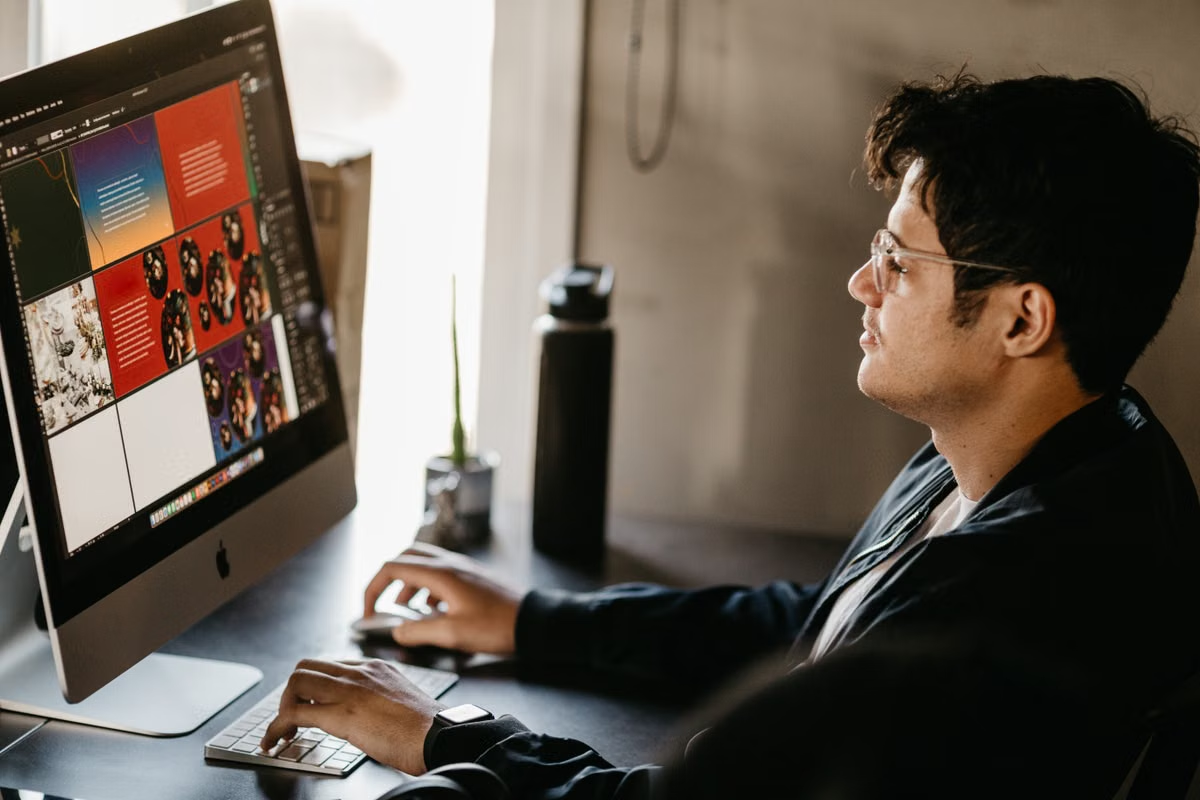
A PXD file on Windows needs a full Mac environment; a standard PSD can be tested in a compatible editor before you continue.
Use the original file, an exchange PSD, and a preview file for every cross-platform handoff. If the project must preserve Pixelmator Pro editing or return to the source repeatedly, use a temporary remote Mac instead of forcing Windows to open the native document.
Who this guide is for
This guide is for freelance designers who receive PXD files or Pixelmator Pro PSD exports and need to continue editing on Windows.
It also fits design leads managing work between Mac and Windows, plus photographers and content creators who need to inspect a Pixelmator Pro project without buying a Mac.
The file decision comes before the software decision
A common failure starts with an incomplete handoff. A designer receives one large image or one exported file, opens it on Windows, and only then discovers that the text, masks, adjustment effects, or linked assets are no longer available.
Do not treat every Pixelmator Pro file as an ordinary image. First identify what you received and what the client expects next:
- Native PXD source: The file intended to preserve the Pixelmator Pro document structure and editing state.
- PSD exchange file: A file exported for use in another image editor. It may retain important layers, but it is not automatically identical to the original project.
- Preview file: A flattened reference image used to compare appearance.
- Supporting resources: Fonts, external images, logos, color references, and any instructions needed to reproduce the result.
Apple documents the Pixelmator Pro native file format separately from its export formats. That distinction matters because an export is an exchange route, not proof that every native editing feature has survived. Check Apple's Pixelmator Pro file format documentation before renaming or reorganizing source files.
Can a Pixelmator Pro PXD file open on Windows?
Not as a native Pixelmator Pro editing document. Pixelmator Pro is an Apple platform application, so Windows cannot provide the complete native application environment required to inspect and modify a PXD project. A compatible Windows image editor may open a separately exported PSD, but that is a different workflow.
Changing .pxd to .psd does not convert the file. It only changes the label that an operating system displays. Keep the original PXD untouched and ask for a valid export when the job can proceed through an exchange format.
What should the sender provide?
For a project that may need further editing, request the following package:
- The untouched PXD source.
- A PSD exchange file, if the sender has confirmed that it opens acceptably in the target Windows editor.
- A flattened preview exported from the source.
- Fonts, linked images, logos, and brand color references.
- A short note naming the intended master file and the application that should make future changes.
The three-file structure is an operational recommendation, not a guarantee of compatibility. The preview helps you detect visual changes; the PSD gives you a possible editing route; the PXD protects the native source.
Pixelmator Pro file Windows editing paths
The right path depends on the requested change, not simply on whether Windows has an image editor installed.
| Project requirement | Windows with a compatible editor | Temporary remote Mac | Keep the native PXD workflow |
|---|---|---|---|
| View a flattened reference | Suitable | Usually unnecessary | Not required |
| Change a few pixels or export sizes | Test first | Useful if the PSD fails | Optional |
| Edit text, masks, and adjustment layers | Conditional | Safer for source fidelity | Recommended |
| Preserve Pixelmator Pro-only editing state | Not suitable | Suitable for testing and edits | Required |
| Make repeated edits and return the source | Risky without sample approval | Suitable | Recommended |
| Deliver print or client-facing output | Possible after visual checks | Useful for final comparison | Keep as source authority |
The editorial scores below describe workflow risk, not application performance. A Windows PSD workflow scores 3/5 for convenience when the file is simple and well prepared, but only 2/5 for source fidelity when the project depends on native features. A remote Mac scores 4/5 for source fidelity when the complete project opens correctly, but it still needs sample-file testing before production use.
If the request is only a small change to a confirmed PSD, start with Windows. If the request involves native Pixelmator Pro features, return to a complete Mac environment.
PSD compatibility has a boundary
Adobe's documentation describes PSD as a format that can contain layers and other editable information, but support in the receiving application still determines what remains usable. Pixelmator Pro's export documentation also treats PSD as one of several output formats rather than as a perfect copy of every native document feature. Read Adobe's current Photoshop file format documentation alongside Apple's export format guidance.
Can a Pixelmator Pro PSD keep editable layers?
It can keep some editable structure, but you should not promise complete preservation before testing the actual file. Text layers, masks, blend modes, vector objects, adjustment layers, and other effects can behave differently after export or when opened by another application.
A PSD that appears to contain layers may still have practical limitations:
- A text layer may use a missing font or substitute font metrics.
- A mask may remain visible but behave differently during later editing.
- A blend mode may produce a different edge or transparency result.
- An adjustment effect may be flattened, changed, or represented differently.
- A vector object may not retain the same editing controls.
- A color profile may affect the appearance of saturated brand colors.
- A linked asset may be absent even though the main document opens.
This is why “PSD supported” is not the same as “the project is fully editable.” Adobe also documents layer export and color-management considerations in its layer export guidance. Use that information to plan the handoff, but validate the Pixelmator Pro sample itself.
Windows editing test
Before changing the production file, open a representative PSD and check these areas:
- Can you select and edit a text layer?
- Does the type wrap at the same point?
- Are masks still attached to the intended layer?
- Do blend effects produce the same edges and transparency?
- Are adjustment controls available, or has the appearance become fixed?
- Do brand colors match the supplied preview?
- Can the Windows editor export the required delivery format?
Do not judge the file only by its thumbnail. A flattened preview may look correct while the editable structure is already unsuitable for the next person.
Important: Never make the exchange PSD the only surviving copy. Keep the original PXD, the tested PSD, and the flattened preview under separate filenames so a failed round trip does not overwrite the source.
Fonts, colors, and missing resources
Many cross-platform failures are not file-format failures. They come from resources that were never included in the handoff.
A design can open without an error message and still be wrong because Windows cannot access the original font, linked photograph, icon, logo, or color reference. The receiving application may silently substitute a font or display a different color profile.
Ask the sender for:
- Font names, permitted files, and licensing instructions.
- Original logos and placed images at their intended resolution.
- A reference preview exported from the source application.
- The intended color profile or print specification.
- Notes identifying which elements must remain editable.
- A list of effects that the recipient must not rebuild manually.
For print work, approve the final exported file on the target production device or through the print provider's proofing process. A screen preview alone cannot establish final print color. For web work, compare the final export against the supplied preview at the intended display size.
The same rule applies to text. If the recipient does not have the licensed font, replacing it may alter line breaks, spacing, and the overall composition. The safest response is to keep the source file authoritative and record the substitution rather than pretending that the two documents are equivalent.
Apple Creator Studio and platform limits
Pixelmator Pro may be used alongside other Apple creative applications and services, but that does not turn the complete workflow into a Windows-native setup. Apple describes the Apple Creator Studio collection and its availability through its own platform requirements. You should verify the current requirements in Apple's official trial and system information before planning a team workflow.
Windows image tools can handle part of the exchange process. They cannot automatically reproduce an application-to-application workflow that depends on Apple's applications, native document state, or direct return to the original project.
This distinction matters when a client says, “Just make one quick change.” If that change involves a Pixelmator Pro-specific effect, a linked native workflow, or repeated round trips, the time spent rebuilding or repairing the file on Windows may exceed the time needed to open the project in a complete Mac environment.
A remote Mac is useful for:
- Opening and checking the original PXD.
- Making a small source-level correction.
- Exporting a controlled PSD or final delivery file.
- Comparing the Mac result with the Windows handoff.
- Completing a temporary project without purchasing another computer.
It is not a substitute for testing. Remote desktop quality depends on the connection, display behavior, input response, and file-transfer method. Do not assume that a remote session will feel identical to local editing until you test the actual sample and workflow.
A five-step cross-platform acceptance process
Use this process before assigning production work to Windows.
1. Define the requested edit
Write down whether the job requires viewing, light retouching, text changes, layer-level editing, source correction, or repeated client revisions. “Edit the file” is too vague to select a safe environment.
2. Preserve the source
Copy the original PXD into a protected source folder. Create a separate working folder for the PSD, preview, and resource package. Never use an extension change as a conversion method.
3. Select a representative sample
Choose one file containing text, a mask, an adjustment effect, a brand color, and at least one external image. A simple image cannot reveal the failure modes that matter in a real project.
4. Compare opening and editing behavior
Open the PSD in the intended Windows editor and compare it with the preview. Test text, masks, effects, colors, and exports. Record which elements remain editable and which have become fixed or changed.
5. Approve the return path
If the Windows result must return to the Mac project, send the edited exchange file back for source-side review. If the project fails at any stage, move the critical work to a complete Mac environment and keep Windows for review or asset preparation.
Use the following decision conditions:
- If the file is a confirmed PSD, the required edit is simple, and the preview matches after testing, choose Windows.
- If the PSD opens but text, masks, effects, or colors change, use a remote Mac for the affected work.
- If the task requires native PXD editing or repeated source-file round trips, keep the Mac environment as the master workflow.
- If the sender provides only a flattened image, request a new package before promising editable delivery.
- If the project is a final print or client approval file, accept only after comparing the final export with the reference and target output.
Remote Mac as a controlled fallback
A remote Mac makes sense when the need is temporary: one client revision, a source-file inspection, a short delivery window, or a compatibility test before a larger migration. It is less suitable as an untested replacement for a long-running studio workflow, especially when you need physical peripherals, local storage, or continuous heavy production work.
Before starting, prepare a redacted sample rather than uploading the entire client archive. Check that the application opens the source, that the required assets are available, and that the exported file can return to the Windows side without a visible change.
If you need to compare Windows software, a local Mac purchase, and a hosted Mac environment, the SSHMac service overview provides the available access model. For connection and setup questions, use the SSHMac help center rather than treating a compatibility assumption as a confirmed result.
Final recommendation
Windows is a reasonable destination for a tested PSD exchange, but it is not a native Pixelmator Pro environment. The main risks are lost editing structure, missing resources, changed typography, altered effects, and a broken return path.
If the project must retain PXD editing or Apple-specific features, a Windows-only workflow is not the best long-term answer. A local Mac gives you the most direct control, while a temporary remote Mac avoids buying hardware for a short project and lets you validate the real file before moving the entire job.
For a short-term need, prepare a sanitized sample first. Then use SSHMac to open, edit, export, and return-test the project in a Mac environment before committing the full client archive. That sequence gives you evidence from your own file rather than a blanket compatibility promise.